kdos
Applications
This chapter is for anyone who wants graphical software on a KDOS machine: a browser, an office suite, an image editor, a CAD package. It describes the applications KDOS compiles natively, arranged by what you want to do, and then the software it does not compile: how to find, install, launch, update and remove that software, how to carry a set of it to another machine without a network, how files and links reach it, and how to manage the boxes it runs in. Read The desktop first if you have not used the Start menu; for the file format and the machinery underneath boxed software, see Packs and boxes and kdos-appbox.
Where applications come from
Applications reach a KDOS machine by two routes.
Native applications are compiled from source by the KDOS build, from recipes in the ports tree, and installed into the system image like every other program. They are on the medium you boot from, they are copied to the disk by the installer, and they need no network at any point. This is where the everyday software lives: Firefox ESR, Thunderbird, LibreOffice, GIMP, Krita, Inkscape, Kdenlive, KiCad, FreeCAD, Blender, QGIS, GNU Radio and many more.
Boxed applications, also called alien apps, are software KDOS does not compile. A catalogue shipped on the medium describes each one, and your machine builds it on demand, in containers, from Debian packages, which needs a network. The catalogue carries what is not ported natively and some alternatives to what is.
The line between the two follows one question: does a machine with no network need it? What it needs is ported natively, and the catalogue carries the rest. See Decisions for the reasoning, and How KDOS differs for how other distributions deliver the same software. How far along each part is, is recorded in Status.
Native applications
A native application is a port: a recipe that the build compiles and packages (see the
glossary). Every upstream port is filed on a subject shelf,
ports/core/<shelf>/<name>/, such as browsers, office, graphics, video-players or
games-board; the closed list of shelves, each with a line saying what belongs on it, is the file
ports/shelves. The section below groups the applications by need instead, since one need often
spans several shelves. KDOS’s own programs, such as kdos-term and kdos-res, are ports under
src/<area>/<name>/ instead. The ports catalogue lists every port
by shelf, with the phase that builds it, libraries included, and How KDOS is built
tells how the build runs.
Because a native application is part of the system, it behaves like any other installed program. An
application with a window of its own brings its desktop entry in its package, so it has a row in the
Start menu and the launcher, it answers the search, it can be pinned, and it opens the file types it
claims. Its command is on your PATH. It starts at once, with no container to bring up, and the
Start menu does not mark it [box]. It is updated with the rest of the system (see Keeping it
current), not with kdos app.
Data an application needs is ported too, so it is on the medium rather than fetched on first use:
KiCad’s symbol, footprint and template libraries, the GIMP manual, the TeX Live documentation,
Celestia’s star catalogues and textures, the Whisper base.en speech model, and the free data sets
of the games (OpenTTD’s graphics, sounds and music, Freedoom, Xonotic’s and SuperTuxKart’s data).
Toolkits, Wayland and X11
Applications are ported with the toolkit their upstream uses: GTK 3 and GTK 4 with libadwaita, WebKitGTK (both its GTK 3 and its GTK 4 API), Qt 5 and Qt 6, QtWebEngine, KDE Frameworks 6 (without the Plasma desktop), wxWidgets, FLTK and Tk, plus OpenJDK for the Java programs. The desktop itself links none of them: the compositor, the panel, the daemons and the portals draw character cells through KDOS’s own libraries (see The design language).
Every toolkit is built with its Wayland backend and its X11 backend, and the login profile,
/etc/profile.d/10-wayland.sh, makes Wayland the first choice:
| Toolkit | How it chooses |
|---|---|
| GTK 3 and GTK 4 | GDK_BACKEND is left unset, so an application tries Wayland first; one that sets GDK_BACKEND=x11 for itself gets the X11 backend |
| Qt 5 and Qt 6 | QT_QPA_PLATFORM="wayland;xcb": the X11 (xcb) platform is used only when the Wayland plugin cannot start |
| Firefox ESR, Thunderbird | MOZ_ENABLE_WAYLAND=1 |
| SDL | SDL_VIDEODRIVER=wayland |
| Java (AWT and Swing) | Runs on Xwayland; _JAVA_AWT_WM_NONREPARENTING=1 tells it there is no reparenting window manager |
A program with no Wayland path at all, such as VLC 3, Xastir (a Motif program), or a Tk or Swing
program, runs on Xwayland, the X server that runs as a client of the compositor. Xwayland is the
only X server on the system: it serves native and boxed X11 programs alike, it is built with GLX so
an X11 program that draws through OpenGL works, and the system carries the X core fonts
(misc-fixed, Adobe’s 75 dpi set and the cursor font) that Motif and Xt programs ask it for. There
is no Xorg server and no display manager.
Native GTK applications open their file dialogs through the desktop’s file-chooser portal, because
the login profile sets GTK_USE_PORTAL=1; Firefox ESR does the same through its shipped
preferences. Open and Save dialogs are therefore kdos-pick, the desktop’s own file browser, in
native and boxed applications alike. Qt 6 applications read the palette, fonts and icons that
kdos theme writes (QT_QPA_PLATFORMTHEME=kde); how each toolkit takes the accent is in
Theming.
Native applications by need
Each table names the applications ported for one kind of work. The names are the applications’ own, and the command that starts each is its upstream name. Those with a window of their own have a row in the Start menu; the rest, such as llama.cpp, Waypipe or ClamAV, run from a prompt.
Browsing the web and the small internet
| Application | What it is for |
|---|---|
| Firefox ESR | The default web browser, on GTK 3. Its shipped policies file turns off telemetry and update checks |
| Chromium | Chromium’s browser, on GTK 3 |
| LibreWolf | A Firefox derivative with privacy defaults |
| Falkon | KDE’s browser, on QtWebEngine |
| qutebrowser | A keyboard-driven browser with vim-like keys, on QtWebEngine |
| NetSurf | A small browser with its own layout engine, for old or slow machines |
| Lagrange | Gemini, Gopher, Spartan and Finger |
w3m, a text-mode browser, runs in a terminal and on a bare console.
Mail, chat and calls
| Application | What it is for |
|---|---|
| Thunderbird | Mail, calendar, contacts and feeds; the default handler for mailto: links. Its telemetry and update checks are off, as Firefox’s are |
| Dino | XMPP chat with OMEMO encryption, file transfer, and voice and video calls (GTK 4) |
| Nheko | Matrix chat with end-to-end encryption and calls (Qt 6) |
| Konversation, Quassel IRC | IRC. Quassel’s core can stay connected while the client is closed |
| Mumble | Low-latency group voice chat, with the Mumble server for a LAN |
| KDE Connect | Files, clipboard, notifications and media control between this machine and a phone |
In a terminal, aerc reads mail over a local notmuch index, profanity is an XMPP client and
newsboat reads feeds; Administration sets mail up.
Sharing files and reaching other machines
| Application | What it is for |
|---|---|
| qBittorrent, Transmission, Deluge | BitTorrent clients; each also has a web or headless mode |
| FileZilla | FTP, FTPS and SFTP with a two-pane site manager |
| Syncthing Tray | Status and control of a local Syncthing |
| Remmina | Remote desktop over RDP, VNC, SPICE and SSH |
| FreeRDP | The RDP engine under Remmina, with its own SDL client, sdl-freerdp |
| wlvncc | A Wayland-native VNC client |
| Waypipe | Runs a Wayland program on another machine and shows its window here |
Phones
ifuse, over usbmuxd, mounts an iPhone’s or iPad’s documents as a directory; Android File
Transfer shows an Android phone’s storage in a window. KDE Connect, above, links a phone over the
network once the kdeconnect firewall name is on (Administration).
Office, documents and reading
| Application | What it is for |
|---|---|
| LibreOffice | Documents, spreadsheets, presentations, drawings and databases |
| Gnumeric | A spreadsheet with careful statistics, reading Excel and OpenDocument |
| AbiWord | A word processor that reads and writes Word, OpenDocument and RTF |
| Okular | The default PDF viewer; also PostScript, DjVu, EPUB, XPS and comics |
| PDF4QT | View and edit PDFs: annotate, redact, sign, compare, split and merge |
| Calibre | E-book library, converter and editor; its viewer is the default for EPUB, MOBI and FB2 |
| KOReader | An e-book and document reader with no toolkit, suited to small or old machines |
| GnuCash | Double-entry accounting for a household or a small business |
| HomeBank | Personal finance: accounts, budgets and reports |
| Qalculate! | A calculator with units, currencies and symbolic algebra |
| GoldenDict-ng | Dictionary lookup over StarDict, DSL, MDict and other formats |
typst and ledger run from a prompt; ocrmypdf adds a searchable text layer to a scanned PDF.
Writing text, notes and typesetting
| Application | What it is for |
|---|---|
| Kate | The default text editor: tabs, split views, projects and language servers |
| Geany | A lightweight programmer’s editor (GTK) |
| Lite XL | A small editor with no toolkit, drawn through SDL |
| Zim | A desktop wiki of linked notebook pages, with a journal and tasks |
| QOwnNotes | Plain-text Markdown notes with a live preview |
| TeX Live | TeX, LaTeX, pdfTeX, XeTeX, LuaTeX, MetaPost and BibTeX, with its documentation |
| TeXstudio | A LaTeX editor with a live PDF preview |
| LyX | A structure-first document processor that writes LaTeX |
Konsole, KDE’s terminal emulator, is ported too; the desktop’s own terminals are foot and
kdos-term.
Scanning, OCR and printing
| Application | What it is for |
|---|---|
| Skanlite | Scan through SANE: preview, select and save |
| gImageReader | OCR through Tesseract, from a scan, an image or a PDF |
| system-config-printer | Add and configure CUPS printers |
The printer drivers are ported with them: HPLIP for HP printers and scanners, brlaser for
Brother monochrome lasers, SpliX for Samsung, Xerox, Dell and Lexmark SPL printers, Gutenprint, and
the Foomatic database. Administration covers the print service.
Pictures, drawing and photos
| Application | What it is for |
|---|---|
| GIMP | Raster image editing and photo retouching, with its manual installed |
| Krita | Digital painting, illustration and frame-by-frame animation |
| Inkscape | Vector drawing in SVG, with PDF import |
| darktable, RawTherapee | RAW photo development |
| digiKam | Photo library: tagging, face recognition and RAW import, with showFoto |
| Gwenview | The default picture viewer |
| gThumb | Browse, tag and edit photos and videos (GTK 4) |
| KolourPaint | A simple paint program |
| Flameshot | Screenshots with an annotation editor |
| Glaxnimate | Vector animation and motion design |
| Pencil2D | Hand-drawn 2D animation |
| Converseen | Batch image conversion and resizing |
| Font Manager | Browse, compare and enable fonts |
| swayimg | An image viewer with no toolkit |
| GrafX2, Goxel | Pixel art in the Deluxe Paint tradition, and a 3D voxel editor |
Print takes a screenshot with the desktop’s own kdos-shot; ImageMagick, vips and exiftool
work from a prompt.
Music and audio
| Application | What it is for |
|---|---|
| Strawberry | The default music player and collection organiser |
| Rhythmbox, Elisa, Audacious | Other music players |
| Audacity, Tenacity, Kwave | Recording and audio editing |
| Ardour | A digital audio workstation: multitrack recording, editing and mixing |
| LMMS | Pattern-based music production with synthesizers and samples |
| Hydrogen | A drum machine and sequencer |
| MuseScore Studio | Music notation: write, play back, print and export scores |
| MusicBrainz Picard | Tag and rename music files from the MusicBrainz database |
| Schism Tracker, MilkyTracker, Furnace, ft2-clone, pt2-clone | Trackers, from Impulse Tracker and Fasttracker II to chiptune |
In a terminal, mpd with rmpc, termusic and cmus play music; sox converts and edits.
Video
| Application | What it is for |
|---|---|
| Haruna | The default video player, over mpv |
| mpv | A player with no toolkit, with the uosc on-screen controls |
| VLC | VLC 3 with its Qt 5 interface; it runs on Xwayland |
| SMPlayer, Celluloid | Other players over mpv |
| Kodi | A full-screen media centre for local and network media |
| Kdenlive, Shotcut | Multitrack video editing |
| OBS Studio | Screen recording and live streaming |
| HandBrake | Video transcoding, with HandBrakeCLI |
| Avidemux | Simple cuts, filters and re-encodes |
| MKVToolNix | Create, split and edit Matroska files |
| Kamoso | Pictures and video from a webcam |
Alt+Print records the screen with the desktop’s own kdos-record; ffmpeg and mediainfo work
from a prompt.
Burning discs
K3b writes data, audio and video CDs, DVDs and Blu-ray discs and copies them. Brasero and Xfburn
are simpler burners, on GTK. From a prompt, cdrdao writes audio CDs disc-at-once and
growisofs (from dvd+rw-tools) writes DVDs and Blu-ray.
Files, disks and safety
| Application | What it is for |
|---|---|
| Dolphin | The file manager a double-clicked folder opens in |
| Ark | The default archive manager for zip, tar and 7z |
| Filelight, QDirStat | What is using the disk |
| GParted | Create, resize, move and check partitions; the filesystem tools it drives are ported with it |
| GNOME Disks | Partition, format, encrypt, image and benchmark disks |
| Impression | Write a disk image to a USB stick or memory card, or a Windows installer ISO to a bootable stick |
| Déjà Dup | Scheduled, encrypted backups |
| KeePassXC | A password manager for KeePass databases, with one-time codes |
| VeraCrypt | Encrypted volumes and containers |
| Kleopatra | OpenPGP and S/MIME certificates, over GnuPG |
| ClamAV | Virus scanning. It ships no signature database: run sudo freshclam once, with a network, before the first scan |
| ImHex | A hex editor for reverse engineering |
| Resources | A system monitor for processors, memory, GPUs, disks and network |
The desktop’s own tools for the same jobs are mc, kdos-pick --browse, kdos-res and btop; see
The desktop.
Virtual machines and remote consoles
Virtual Machine Manager (virt-manager) creates and runs virtual machines through libvirt and QEMU,
and shows their consoles over SPICE or VNC. QEMU runs from a prompt as well. See
Administration for the services these need.
Maps and navigation
| Application | What it is for |
|---|---|
| Organic Maps | Offline maps with search and turn-by-turn routing |
| Marble | A virtual globe and world atlas |
| GPXSee | View and analyse GPS tracks over offline maps |
| QMapShack | Topographic maps, elevation models and GPS tracks |
| Viking | Manage GPS tracks, waypoints and routes on maps |
| JOSM | Edit OpenStreetMap data (Java) |
| OpenCPN | Chart plotting and navigation for boats |
| QGIS | A full geographic information system; see below |
Reference, learning and offline knowledge
| Application | What it is for |
|---|---|
| Kiwix | Read ZIM libraries, such as Wikipedia, offline; the default for .zim files. kiwix-serve serves them to other machines |
| Zeal | Offline API documentation sets |
| Kolibri | An offline learning platform of courses and quizzes |
| Stellarium | A planetarium |
| Celestia | A 3D space simulator |
| Kalzium | The periodic table of the elements |
| KAlgebra, KTurtle, KGeography, KTouch, KWordQuiz, Parley | KDE’s education set: graphing, programming, geography, typing and vocabulary |
| GCompris, Tux Paint | Activities and drawing for young children |
Local AI, speech and translation
These run on this machine’s processor and send nothing to a remote service:
| Program | What it is for |
|---|---|
| llama.cpp | Local language models, from a prompt or as a local server |
| whisper.cpp | Speech to text; the base.en model is installed with it |
| Piper | Text to speech |
| translateLocally | Machine translation |
Software radio
| Application | What it is for |
|---|---|
| GNU Radio | Signal-processing blocks and GNU Radio Companion, for building receivers and transmitters |
| Gqrx, SDR++, CubicSDR | Receivers with a spectrum and waterfall |
| SDRangel | Receive, transmit and decode many modes |
| SatDump | Receive and decode weather and science satellites |
| Universal Radio Hacker | Record, demodulate and decode wireless protocols |
| Inspectrum | Inspect a recorded signal |
The drivers for RTL-SDR, HackRF, Airspy, LimeSDR, USRP and the FUNcube Dongle, and SoapySDR over them, are ported with them.
Amateur radio and mesh networks
| Application | What it is for |
|---|---|
| WSJT-X, JS8Call | FT8, FT4, WSPR and other weak-signal modes; keyboard messaging |
| fldigi, flmsg, flamp, flrig | Sound-card digital modes, message forms, multicast file transfer and rig control |
| FreeDV | HF digital voice |
| QSSTV | Slow-scan television |
| Gpredict | Satellite tracking and pass prediction |
| CHIRP | Program a radio’s memory channels |
| KLog | A logbook |
| Pat, ARDOP | Winlink email over radio |
| Xastir | APRS maps and messaging (Motif, on Xwayland) |
| xnec2c | Antenna modelling |
| Nomad Network, Sideband | Messages and pages over a Reticulum mesh |
| Contact | A terminal client for a Meshtastic radio |
The Meshtastic and RNode firmware images are ported as well, to flash a LoRa radio with no network.
CAD, electronics, 3D printing and 3D
| Application | What it is for |
|---|---|
| FreeCAD | Parametric 3D CAD, with FEM through CalculiX and meshing through Netgen and Gmsh |
| SolveSpace | Parametric 2D and 3D CAD with a constraint solver |
| OpenSCAD | Solid models written as scripts |
| LibreCAD, QCAD | 2D CAD with DXF |
| KiCad | Schematics, PCB layout, Gerber viewing and SPICE simulation, with its official libraries |
| Horizon EDA, LibrePCB | Other schematic and PCB tools |
| Qucs-S | Circuit simulation over ngspice |
| Digital, Logisim-evolution | Digital logic design and simulation for teaching |
| PrusaSlicer, OrcaSlicer, Cura | Slice 3D models into G-code for a printer |
| Blender | 3D modelling, sculpting, animation and rendering |
| LinuxCNC, bCNC, Candle, CNCjs | Drive a CNC machine or a laser |
Science, data and development
| Application | What it is for |
|---|---|
| GNU Octave | MATLAB-compatible numerical computing |
| R, RKWard | Statistics, and a KDE front end to R |
| LabPlot, Veusz | Plots and data analysis |
| Cantor | Worksheets over Python, R, Octave, Maxima and others |
| QGIS | Desktop GIS |
| JupyterLab | Notebooks served on this machine |
| Spyder | A scientific Python IDE |
| Qt Creator, KDevelop | IDEs for C, C++ and Qt |
| KDiff3, Git Cola | Compare and merge files; a Git GUI |
| DB Browser for SQLite | Create, browse and query SQLite databases |
Clinic, shop and family
DCMTK handles medical DICOM images; Zint and gLabels make barcodes, labels and business cards, and
ptouch-print prints on Brother P-touch label printers; Gramps keeps a family tree; the Tryton
client and GNU Health run a clinic’s records.
Accessibility
Orca is the screen reader, Dasher enters text by steering a pointer or a switch, wvkbd is an
on-screen keyboard, and wl-kbptr (the menu’s Keyboard Pointer) and wtype move the pointer and
type from the keyboard. What
each can and cannot reach on this desktop is in Accessibility.
Windows programs
Wine runs Windows programs, 64-bit and 32-bit. Wine Mono and Wine Gecko are ported with it, so a program that asks for .NET or for Wine’s HTML engine does not wait for a download.
Games and emulators
The games are native ports, each with its free data set: OpenTTD, The Battle for Wesnoth, SuperTux, SuperTuxKart, Luanti, Warzone 2100, Endless Sky, Freeciv, Widelands, Xonotic, Cube 2: Sauerbraten, Pioneer, Cataclysm: Dark Days Ahead, Dungeon Crawl Stone Soup, Brogue, Neverball, The Powder Toy, Flare and DDraceNetwork; Freedoom with the Chocolate Doom, Crispy Doom and dsda-doom engines; KDE’s and GNOME’s card and puzzle games; and chess with Stockfish. Engines for games you own are ported too: Yamagi Quake II, Ironwail, ioquake3, DevilutionX, OpenRCT2, fheroes2 and ScummVM.
RetroArch comes with its cores for Game Boy Advance, Game Boy, SNES, NES, Mega Drive, PlayStation, Nintendo 64 and Nintendo DS. The standalone emulators are mGBA, Mednafen, DOSBox Staging, DOSBox-X, Fuse (ZX Spectrum), VICE (Commodore), Hatari (Atari ST), Stella (Atari 2600), Mupen64Plus, Amiberry (Amiga), PPSSPP and openMSX.
Services for a LAN
A few ports are servers for a small network rather than applications: Radicale (calendars and contacts), maddy (mail), ngIRCd (IRC), MiniDLNA (media for televisions) and Network UPS Tools. See Administration.
Programs for old hardware
The light tier is a set of programs with no GTK or Qt, for the oldest hardware and for software
rendering: Lite XL, KOReader, the uosc controls for mpv, GrafX2, Goxel, the trackers, Sniffnet
(network traffic by host and program), Inlyne (a Markdown viewer), Surfer (a waveform viewer for
simulation traces), wl-mirror (an output mirrored into a window, for a projector) and the
fuzzel launcher. mpv and swayimg, listed above, need no toolkit either.
What an alien app is
An alien app is a graphical application that this repository does not compile. It runs in a
box: a rootless Podman container of its own, named after the application’s catalogue id
(app.scribus, app.hugin). A box shares your home directory by default, so the files you work on
are the same files inside and outside it. It is a packaging boundary, not a security boundary
against you; see The security model.
An alien app reaches your machine by one of two routes, and the route decides what kind of box it gets:
- Installed from the catalogue, it is a stack of container images this machine builds: a base system, a shared runtime (for example the GTK or Qt libraries), and the application on top. Its box, a store box, is created over that top image, and the container engine keeps the box’s writable layer in its own storage.
- Imported from an exported set, it is a pack: a read-only filesystem image whose hash, and
signature where there is one, the pack daemon
kdos-packdchecks before it mounts anything. An exported pack holds the application’s whole flattened root, base and runtime included. Its box, a pack box, is that pack with a writable layer composed over it, kept under~/.local/share/kdos/boxes/<name>/.
Either way the application behaves like a native one. It has a launcher in the Start menu, it opens the file types it claims, it can be your default handler for a type, and it has a command you can type at a prompt. The container shows only on the first launch of a session, which is slower.
What the catalogue carries
The catalogue is the file /usr/share/kdos/appstore/catalogue (in the source tree,
src/system/kdos-appbox/catalogue). It describes software rather than containing it: nothing is
baked into the ISO, and an application is built by Podman on the machine that asks for it. The
store, the installer and kdos app all read this one file, so a row added to it is offered by all
three.
Counted in the shipped file:
| Row kind | Count |
|---|---|
Applications (app) |
73 |
Shared runtimes (runtime) |
7 |
Bases (base) |
2 |
Data sets (data) |
2 |
Groups (distinct names on group rows) |
7 |
Commands meant to be typed (cmd) |
25, in 16 applications |
The runtimes are rt-gtk, rt-qt, rt-kde (built on rt-qt), rt-media, rt-sci,
rt-electron and rt-wine. Each application is built on one runtime, or directly on a base, and
each runtime on a base, so a runtime is built and stored once however many applications use it. The
two bases are:
base— Debian 13 (trixie), built from thedebian:trixie-slimimage, with what every graphical application needs: fonts, icon themes, the Mesa GL and VA-API libraries, D-Bus and the XDG utilities;alpine— thealpine:3.24.1image, about 3 MB of busybox and musl, a clean scratch system to try something in. It has no packages of its own, and no application is built on it.
Most rows are packages from the Debian archive. One application Debian does not carry, VSCodium,
is fetched as a .deb from its own release page and handed to Debian’s package manager, which
resolves its dependencies normally. How the Debian packages are pinned is described under
The Debian snapshot.
What the rows cover
The rows are applications KDOS does not build natively, and a few alternatives to ones it does: document readers and note-taking, page layout and panorama stitching, mail and chat, 3D viewing and reconstruction, electronics viewers and logic analysis, audio routing and effects, development tools, and a wide range of science (chemistry and materials codes, astronomy, GIS, statistics, biology and numerical computing), with a few utilities and games.
Groups are how the store and the installer offer the catalogue:
| Group | What it holds |
|---|---|
essential |
Zathura |
office |
Documents, spreadsheets and reading |
creative |
Images, audio and video |
dev |
Programming and electronics |
science |
Computation, modelling and data |
make |
3D modelling, slicing and CAD |
games |
Games and emulators |
The installer ticks essential by default. The base and runtime an application needs come with it;
they are never chosen on their own.
Finding and installing
kdos app is the command-line half of the store:
kdos app list                        # what is installed here
kdos app list --all                  # every application and data set, with its state
kdos app groups                      # the seven groups and what is in each
kdos app search image                # match id, name, category and summary
kdos app info app.scribus            # name, category, state, what it is built on, a size estimate
kdos app install app.scribus         # one application
kdos app install creative            # a whole group
kdos app install app.scribus --dry-run # print what would be built, without building it
kdos app install --pending           # the applications chosen during installation
kdos app show is another name for info. Every verb that builds, removes, exports or imports runs
kdos-appbox to do the work, so the command line and the store cannot disagree about what
installing means.
Installing builds the application on this machine, one image per layer: installing Scribus builds
kdos/base, then kdos/rt-qt, then kdos/app.scribus, in that order, and then creates the box.
The next Qt application finds the base and the runtime already built and needs only one more pass of
Debian’s package manager. --dry-run prints the generated container build files instead, and counts
a shared runtime once, as a real install would. Sizes are shown as estimates everywhere: what the
package manager resolves depends on the snapshot, and shared layers are stored once however many
applications use them.
When you install several applications and one fails, the others stay installed and the failure is
named, as N of M did not install. Nothing is rolled back.
An application that is useless without a data set can name it with a needs row, and installing the
application then builds the data set too; the shipped catalogue has none. Both data sets are
installed by name: data.kicad-packages3d, the KiCad 3D model library, whose graft row names
/usr/share/kicad/3dmodels, where the natively built KiCad looks, and data.tesseract-langs,
language files for Tesseract OCR. A data set is built but not grafted into its application’s box;
see What does not work.
kdos app install --pending reads /var/lib/kdos/apps-pending, where the installer records the
groups you ticked when it did not install them: it had neither a set to import nor a network, or
the import or the build failed. After a failure the file is kept, so running the command again does
the rest. The file belongs to root and the command runs as you, so it stays in place after a run in
which everything installed too; a further --pending then tries the same groups again and reports
each application as not installed because its box exists. Delete the file once everything has
installed:
sudo rm /var/lib/kdos/apps-pending
The first login after installation says in a notification that the chosen applications are ready to
install, once; delete ~/.config/kdos/apps-offered to see it again.
Two limits apply before you start:
- Installing needs a network and takes minutes: several for one application, the better part of an hour for a large group. An exported set installs offline instead; see Carrying a set to another machine.
- On a live session, what you install does not outlast the session. Installing works there:
the container engine’s storage is pinned to
fuse-overlayfs, which can stack its layers on the live session’s overlay. But the images and the box are written under$HOME, which on a live session is that overlay, held in memory and lost at power-off unless the session has a persistence store (kdos persist; see Boot and init). Install KDOS to disk to keep them.kdos doctorreports a$HOMEon an overlay.
The store
kdos-store is the same catalogue as a window, titled Applications. Open it from the Start menu,
or with kdos menu summon setup.applications. Its tabs are Groups, All, up to nine category
tabs ordered most-populated first, and Installed. The tab row holds twelve tabs at most, Other
never gets one, and an application whose category has no tab is found under All. Each row shows
the application’s name, the runtime it is built on and an estimate of its size; on the Groups tab
each row shows the group, how many applications it holds and their size. An application that is
already installed is marked [·] and cannot be ticked. The footer keeps a running size estimate of what you
have ticked.
| Key | Action |
|---|---|
Left, Right |
Previous or next tab |
Space |
Tick or untick the row; on the Groups tab, every application in the group |
Enter |
Install the application under the cursor; on the Groups tab, tick or untick the group |
F5 |
Install everything ticked |
F6 |
Import the set at ~/apps.ktar |
F7 |
Export everything ticked to ~/apps.ktar |
r |
Refresh, after an install finishes |
The store builds nothing itself. An install, import or export runs kdos-appbox in a terminal
window of its own, so you can read the package manager’s output and close the store while it works.
On a virtual console with no terminal emulator to open, the store says so and points you to
kdos app install. The store takes no file name: to export to or import from another path, use
kdos app at a prompt.
Carrying a set to another machine
kdos app export ~/apps.ktar creative app.vscodium   # on a machine that has them installed
kdos app import ~/apps.ktar                          # on the other machine: the SELECTION ids
kdos app import ~/apps.ktar app.scribus              # only part of the set
Export flattens each installed application’s image, with its base and runtime, into one pack and
puts the set in one .ktar file, together with an index of every pack’s hash. An application named
in the selection but not installed here is skipped with a message. The index is signed when the
variable KDOS_PACK_KEY names a readable key file; without one the set still exports and imports,
and the export states that the index is unsigned. Import does not read the index.
Import hands each pack to kdos-packd, which checks the pack itself, against the hash the pack
carries and against its signature where it has one, so a tampered pack is refused rather than run. An imported application is
therefore verified where one built from the catalogue is not, and no network is needed at any
point. Importing needs kdos-packd running and an account in wheel, because the daemon’s socket
accepts only root and wheel. A pack the daemon refuses is named and skipped; the rest of the set
still imports, and the command ends with a count of what imported and what failed.
The archive holds a SELECTION file, plain text with one id per line, so a set can be read,
compared and edited by hand. A group named on the export command line is written as a group line
and its members are not listed under it. An import with no ids reads only the id lines and skips
every group line, so it imports the applications that were named individually and not the
members of a group. In the example above, kdos app import ~/apps.ktar imports VSCodium alone; the
creative applications the archive carries are imported by naming them:
kdos app import ~/apps.ktar app.scribus # a member of a group, named on its own
The installer looks for a set on a stick too; see Installation for what it does with one. On a live session an imported application runs, but its box’s writable layer is held in memory and lost at power-off.
Launching
A native application starts like any program: from its row in the Start menu or the launcher, or by typing its command. The rest of this section is about boxed applications.
Start an installed boxed application from its row in the Start menu or the launcher, by typing its
command, or by id with kdos app launch:
scribus                      # the command on your PATH
kdos app launch app.scribus  # by id; installs it first if it is not installed
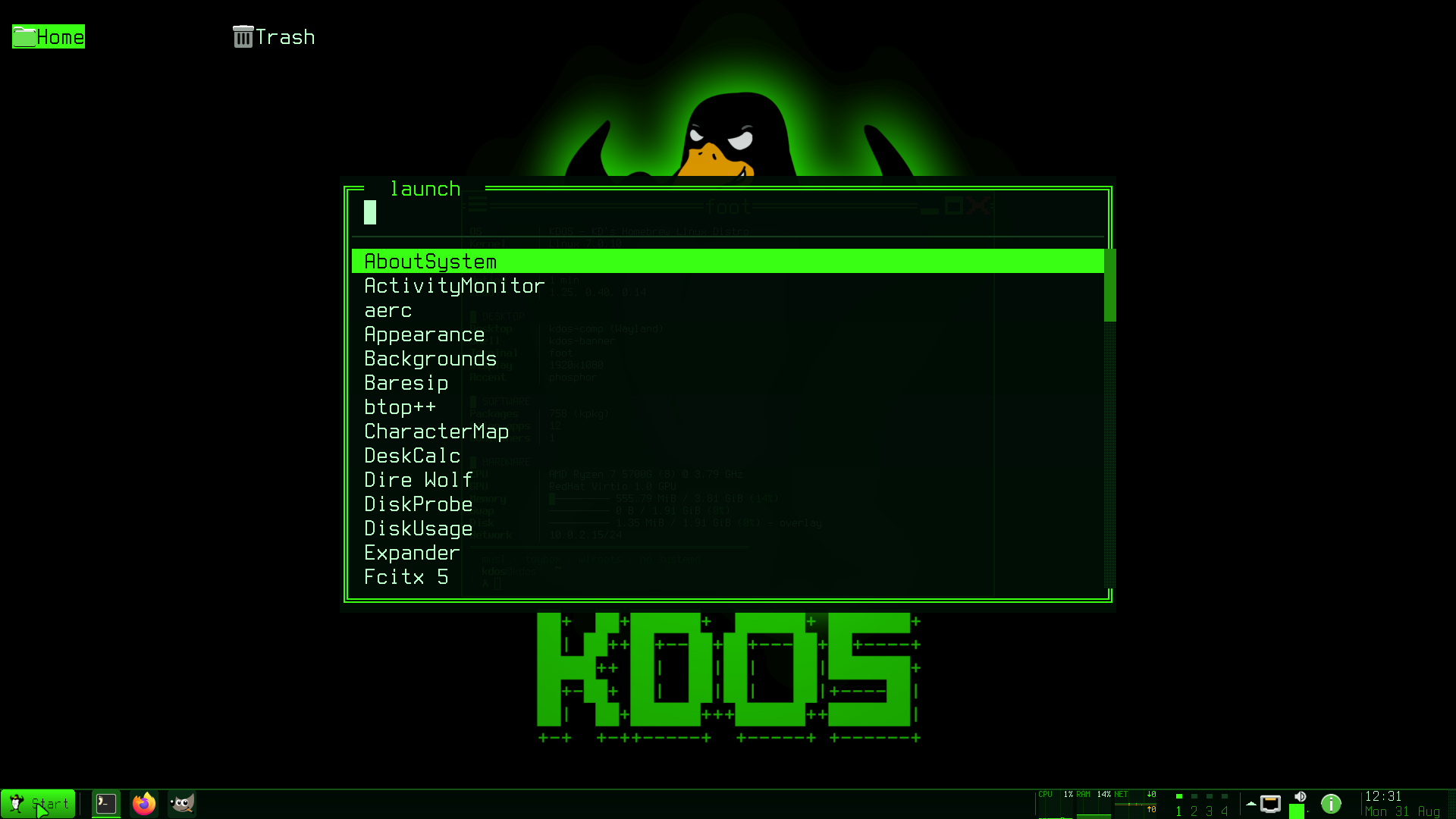
The command is a shim: a symbolic link named after the application that points at kdos-appbox,
which reads its own name, looks the application up and starts it in its box. Shims for applications
you install go in ~/.local/bin, which the login profile puts on your PATH; the table that maps
each shim to its box is ~/.local/share/kdos/alien-apps. kdos app launch on an application that
has no launcher, because it is a command-line tool, says so and names kdos app info.
A first launch is slow, because a container has to be created or started and its first process
has to finish setting the box up before anything runs in it. A cold launch, with no container at
all, has been measured at about 18 seconds; a launch into a box that is already running skips all
of that. That is why the Start menu marks boxed applications [box], and why a “Starting
app” notification appears while a box comes up.
It is also why, when you log in, the session runs kdos-appbox warmup in the background at
nice 10. The warmup reads your pinned applications from ~/.config/kdos/favorites, where each
line is a desktop id optionally followed by a launch code such as code=WW, and starts the boxes
of up to eight of them, one at a time. It takes the whole line as the desktop id, so a line that
carries a launch code names no desktop entry and is skipped; every line of the shipped list
carries one, so on a new account the warmup starts no box until you pin a boxed application
without a code. A second warmup while one is running does nothing.
To see where a launch spent its time, read $XDG_RUNTIME_DIR/kdos-appbox.trace, which gets one
timestamped line per stage.
Adding a terminal program to the menu
kdos app tui gives a terminal program a Start-menu entry of its own, without editing a desktop
file by hand. The Start menu’s route setup.tui runs the same command.
kdos app tui add "Disk usage" ncdu                     # prints the entry's name, kdos-tui-disk-usage
kdos app tui add btop btop --icon utilities-system-monitor --category System
kdos app tui ls                                        # the entries this command made
kdos app tui rm disk-usage                             # remove one
| Option | Effect |
|---|---|
--float |
Write X-KDOS-Float=true: ask for an unanchored window |
--size COLSxROWS |
Write X-KDOS-Size: the terminal’s size, at least 4x2 |
--icon NAME |
The menu icon (default system-run) |
--category X |
The menu category (default Utility) |
--float and --size are hints that only kdos-term honours. An entry this command writes names
no terminal (it carries no X-KDOS-Term key), so the desktop opens it in foot, which is not
given either hint: the window opens at foot’s default size and the compositor places it.
The display name becomes the file name: lower case, with every run of characters other than
letters and digits turned into one dash. Entries are written to
~/.local/share/applications/kdos-tui-<name>.desktop; the prefix keeps an entry from shadowing a
shipped one of the same name. rm takes the name with or without the prefix, and removes only an
entry this command wrote, which it recognises by the X-KDOS-TUI=true key. kdos app tui needs
neither kdos-packd nor membership of wheel.
Opening files
Double-clicking a file, or running kdos-appbox open <path>, finds the file’s type from its name
and then a program to open it. The lookup is the freedesktop one: the file name against the shared
MIME database’s glob table, where the longest matching suffix wins, then mimeapps.list (default
applications first, then added associations), then each mimeinfo.cache. Boxed applications are
found exactly like host ones, because installing one writes its file types into the same places.
kdos-appbox open report.pdf             # open with the default handler
kdos-appbox open --print report.pdf     # print the type, the candidates and the handler, and open nothing
kdos-appbox open --choose report.pdf    # pick a handler
When more than one program claims the type and none is set as the default, kdos-appbox open asks,
with kdos-openwith; --choose asks whatever the defaults say. kdos-openwith is also the “Open
with” dialog of the desktop, and its Always use this application box makes the choice the default
for that type. A boxed application can be the default handler for a type. When nothing claims a
type, the request goes to the system’s xdg-open script. One call opens up to four files, all with
the handler chosen for the first.
The shipped defaults send each everyday type to a native application: folders to Dolphin, PDF to Okular, books to Calibre’s viewer, text to Kate, pictures to Gwenview, video to Haruna, music to Strawberry, web links to Firefox ESR and mail links to Thunderbird. The full table is in the desktop guide.
xdg-open on KDOS is another name for the same program, so links from any program go to your chosen
handler. Links clicked inside a box open on the host: a boxed application asks the desktop portal
(a session service that carries requests such as “open this link” out of a box; see
Portals) to open them, and the portal launches the host’s
handler, so a help link in a boxed application opens in your browser.
Printing works from inside a box. The host’s print service socket, /run/cups, is shared into a box
when the box is created, and the application’s own print dialog talks to it directly. Because a
box’s shared directories are fixed at creation, a box created while the print service was not
running cannot print until it is created again; see
Profile changes and re-creating a box.
Commands that live in boxes
Not all boxed software is an application you click. Sixteen catalogue applications carry a
program meant to be typed, twenty-five in all: gmic, solve-field, cp2k, grib_ls, gmx,
ghdl, rr, glxgears and the rest, listed in the catalogue as cmd rows. They are solvers,
converters, toolchains and tools driven from a prompt, and they get no menu entry: a launcher for
gmx with no arguments would do nothing. To see them all:
grep '^cmd' /usr/share/kdos/appstore/catalogue
Run one in its application’s box with -b:
kdos-appbox -b app.gmic run gmic input.png -blur 3 -o output.png
kdos-appbox -b app.gromacs run gmx mdrun -h
-b (or --box) names the box. Without it, kdos-appbox run works out the box from an installed
application’s launcher, and a command-line tool has none.
Where a shim exists, typing the name is shorter. Shims are made for the programs an application’s
own desktop entries name, and for wine, winecfg and winetricks wherever the box carries them.
Most command-only tools have no desktop entry and so no shim; use kdos-appbox -b for those. A shim
is never made under the name of a host tool (git, gnuplot, mpv, python3, the shell and
file tools, and KDOS’s own commands among them), because ~/.local/bin comes ahead of the system
directories on PATH and the shim would take the name over from the host program.
Updating
Native applications are updated with the system; see Keeping it current. This section is about boxed applications.
A boxed application is rebuilt only when you ask for it. kdos app install reuses every image that
already exists, so installing an application that is already here builds nothing: each image
reports that it is already here, the step that creates the box fails because the box exists, and
the command ends by reporting 1 of 1 did not install. To rebuild an application, remove it and
install it again:
kdos app remove app.scribus
kdos app install app.scribus
This rebuilds the application’s own image, and any runtime that no other installed application
was using. Neither the base image nor the pulled debian:trixie-slim is removed, so under
snapshot = auto the rebuild reads the same snapshot date as before. Packages move to a newer snapshot only when the catalogue names a later
date, or when this machine pulls a newer debian:trixie-slim.
An imported set behaves differently. Each exported pack is stamped with the time of the export as
its version, and kdos-packd keeps one superseded version of each pack on disk when a newer one is
imported, so an update can be undone. That is retain in
/etc/kdos/packd.conf, which ships set to 1;
retain = 0 keeps none.
Importing a newer set installs the new pack even for an application whose box already exists, but
the step that creates the box then fails, and the import reports <name>: the pack installed and the
box did not and counts the application as failed. To move such a box onto the new pack, remove the
box first with kdos-box remove <name> and then import; the box’s writable layer and settings stay,
and the new box is composed on the newest version of each pack.
The Debian snapshot
The Debian packages come from a pinned snapshot of the Debian archive, set by the catalogue’s
snapshot key:
| Value | Effect |
|---|---|
auto (shipped) |
The date is read from the sources file inside the debian:trixie-slim image this machine pulled, so the packages installed on top always match the system under them |
a date, such as 20260824T000000Z |
Every machine builds against the same snapshot |
off |
The live Debian archive; builds are not reproducible |
The debian:trixie-slim tag moves as Debian publishes new images, so under auto two machines
agree on the snapshot only when they pulled the same image. If the date cannot be read out of the
image, the build warns that it is using the live archive and carries on rather than refusing.
Removing
kdos app remove app.scribus   # one application
kdos app remove creative      # a whole group
Removing an application:
- removes its box; the box’s settings in
~/.config/kdos/boxes/<name>.confstay, so installing it again picks them up; - deletes the application’s image, and any runtime image no other installed application uses;
- never deletes the base image, which every application sits on;
- regenerates the launchers, shims and file-type associations from what remains.
What happens to the work inside the box depends on the kind of box. Your own files in your home
directory are never touched, because the box shares your home directory. A store box’s writable
layer, meaning anything the application wrote outside your home directory, lives in the container
and is removed with it. A pack box’s writable layer stays in ~/.local/share/kdos/boxes/<name>/,
and its packs stay in kdos-packd’s store.
Boxes
Every application gets its own box, named after it. You do not need to manage boxes to use
applications, but kdos-box manages them directly:
kdos-box list                                      # every box: its image, state and profile
kdos-box enter app.scribus                         # a shell inside one, in a new terminal window
kdos-box create scratch base=image:alpine:3.24.1   # a new box; base= also takes pack:<id>
kdos-box start | stop | restart | remove <name>
kdos-box gc                                        # stop idle boxes now (--dry-run to preview)
kdos-box enter sets KDOS_BOX to the box’s name inside it, which a shell prompt can show. The
full command set, including run, apps, export and import, is in
kdos-appbox.
A pack box’s writable layer
Five commands work on the writable layer under ~/.local/share/kdos/boxes/<name>/, and so apply
to pack boxes (imported applications and boxes created with a pack: base). A store box keeps its
writable layer in the container engine’s storage, where these commands do not reach.
kdos-box snapshot app.scribus before-plugin        # a full copy of the writable layer, tagged
kdos-box snapshots app.scribus                     # list them
kdos-box rollback app.scribus before-plugin        # put one back
kdos-box clone app.scribus scribus-test            # a new box on the same base, with the work copied
kdos-box freeze app.scribus                        # what the box changed, captured as one pack
kdos-box freeze packs only what the box has written over its base, which on a real working box
is a small fraction of its whole root. A pack box is created over mounted packs rather than a
container image, so there is no image to commit, and freezing is the way to capture its state.
To start a second box from the same software with an empty workspace, read the first box’s base
with kdos-box profile <name> and pass it to kdos-box create.
Profiles
A box’s settings live in ~/.config/kdos/boxes/<name>.conf, its profile. `kdos-box profile