kdos
The desktop
This chapter is for anyone sitting at a KDOS desktop. It describes what is on the screen, what each part of the panel does when you click it, every keyboard and pointer binding the system ships, and how the Start menu, windows, notifications, files, the clipboard, locking, displays and removable media behave. Read Getting started first if you do not yet have a running session. Each section names the file that controls what it describes; every key in those files is listed with its default in Configuration.
What is on the screen
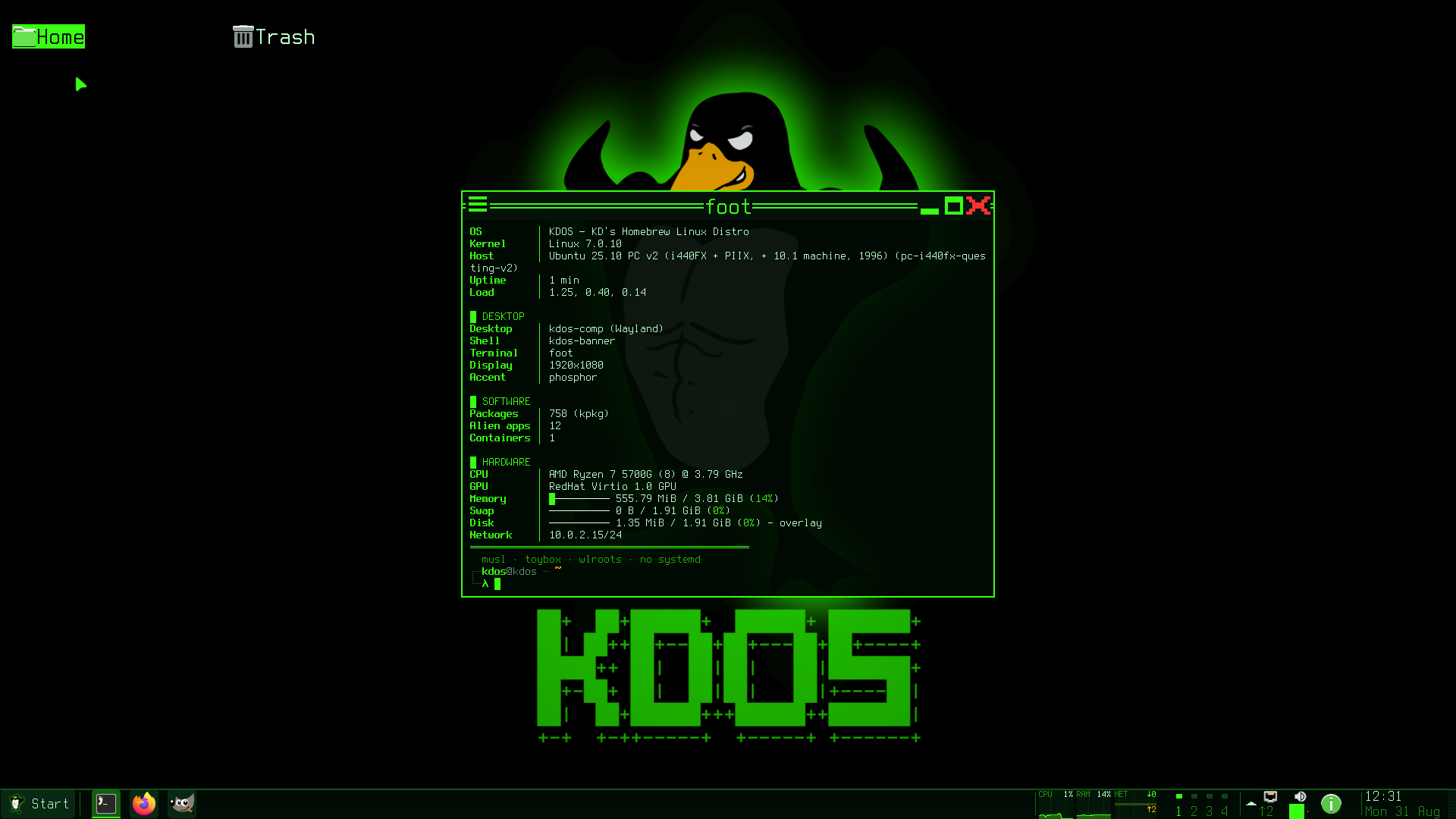
| Piece | Program |
|---|---|
| Window frames, the compositor’s menus, the phosphor pass | kdos-comp, the compositor |
| The panel | kdos-shell |
| Icons on the wallpaper | kdos-desk |
| Everything that opens from the panel | Other names of the same kdos-shell binary |
The phosphor pass is a shader that makes the whole screen imitate a CRT; see the glossary.
The compositor starts one panel and one desktop-icon surface per screen. The panel sits on the bottom edge and is two character cells tall. Its second row carries the clock’s date, the meters strip and, when window buttons show their names, each window’s title under its application name.
The panel’s shape is set in ~/.config/kdos/comp.conf. Each of these keys becomes part of a
program’s command line, so the compositor reads them once, when the session starts: a change takes
effect at your next login, and a reload in the meantime logs that it was deferred. A key written
with an empty value is ignored and the default stays in force.
| Key | Default | What it does |
|---|---|---|
panel |
bottom |
bottom, top, or off (none is accepted as off) |
panel_cells |
2 |
Height in cells, 1 to 4. With 1 there is no second row, no meters strip, and a window button shows a name and no icon |
panel_font |
Terminus:pixelsize=20 |
The bar’s font, which sets its height. Name a size Terminus has: 12, 14, 16, 18, 20, 22, 24, 28 or 32; a size between them is drawn at the nearest one, and the bar then sits a pixel off everything measured against it |
panel_margin |
0 |
Pixels between the bar and the screen edge, 0 to 64. A non-zero value floats the bar off three sides, and maximised windows stop at the gap |
panel_opacity |
80 |
Background opacity in percent, 20 to 100. Text and icons stay opaque |
panel_autohide |
no |
yes shrinks the bar to a one-row strip until the pointer reaches it |
chrome_font |
Terminus:pixelsize=32 |
The font of the surfaces the compositor starts: the desktop icons, the dock-app column, notifications and the Wi-Fi passphrase prompt. Menus and popups opened from the panel draw in the built-in Terminus:pixelsize=32 whatever it says. It is a pixel size; for a 4K screen at scale 1, Terminus:pixelsize=64 is the 32 size with every pixel doubled. A size Terminus has no bitmap for, such as 48, is drawn from Terminus (TTF) in a cell exactly that tall |
clock_format |
%H:%M |
The panel clock, as a strftime format; %a %d %H:%M adds the day and date |
desktop_icons |
yes |
no turns off kdos-desk and leaves the wallpaper bare |
icons |
yes |
no draws a character glyph wherever a picture would go |
slit |
no |
yes starts kdos-slit, a column of small gadgets configured in ~/.config/kdos/slit.conf, one gadget per line as <interval_s> <width_cells> <command> [args…] |
The wallpaper and the phosphor pass are also comp.conf keys; Theming covers them.
Settings’ Panel and Desktop pages write the same keys.
How the desktop is drawn
Almost everything KDOS draws is a grid of character cells in one colour palette, in the Terminus
font: the panel and everything that opens from it, the desktop icons, the lock screen, the boot
splash and the text console on tty1. A cell is half as wide as it is tall. The panel_font key
above sets the cell size of the bar, and chrome_font that of the desktop icons and notifications;
the menus and popups the panel opens keep the built-in size, 32 pixels.
Three things are not on that grid:
- The compositor’s own chrome: title bars, the compositor’s menus and the window-switcher display, drawn as text sized to one cell; see Windows.
- Applications. A graphical application draws whatever its own toolkit draws, whether it is built natively or runs in a box, the container a boxed application runs in (see the glossary). Only its window frame and its file dialogs are the desktop’s.
- Pictures, such as icons and window previews, which occupy whole cells.
The design language explains why the desktop looks like this, and kdos-shell explains how each surface is built.
The panel
These are the pieces that are always on the panel, from left to right. The occasional ones (the recording lamps, the now-playing controls, the clipboard depth, the CPU readout, the update and restart marks, the stutter chip) are widgets you can add, remove and reorder; the second table below says how each answers a click, and the notification area explains how to choose them.
| Element | Left click | Middle click | Right click |
|---|---|---|---|
| Start button | The Start menu | Run a command (kdos-run) |
The System menu |
| Window list | Pinned and not running: launches it. Running: shows or hides its window, or lists the windows of a group | Launches another instance | The window menu. On a pinned button with nothing running, unpins it at once |
+N cell |
A list of the windows that did not fit | — | — |
| Meters strip | btop in a terminal |
The stutter report | The energy report |
| Workspace squares | Switch workspace | — | — |
| Tray items | Activate the item, or its menu if the item is only a menu | Secondary activate | The item’s menu |
| Overflow chevron | The status popup, listing what is behind it | — | — |
| Network | The network manager, kdos-net |
— | The network manager |
| Volume | A slider you can drag; the wheel over it changes the volume by 5% | Mute or unmute | Audio devices and volumes |
| Battery | The calendar | — | Settings’ Session page |
| Notification badge | The notification centre | Do not disturb, on and off | — |
| Clock | The calendar. The clock and the battery share this popup, so either one closes what the other opened | — | — |
| Show desktop (the last column) | Minimises every window, or brings back the ones it minimised when nothing is on screen | — | — |
Resting the pointer on the show-desktop column fades every window so you can see the desktop, and moving away brings them back; only a click minimises them.
The widgets that come and go answer clicks like this:
| Widget | Left click | Middle click | Right click |
|---|---|---|---|
| Microphone lamp | Mute every capture switch on the sound card; a second click restores them | The same as a left click | Audio devices and volumes |
| Camera or screen lamp | Devices (kdos-devices) |
— | Devices |
| Removable media | Devices | — | Devices |
| Now playing | Play or pause | Previous track | Next track |
| CPU readout | The resource monitor, kdos-res |
— | — |
| Clipboard depth | Clipboard history | — | — |
| Stutter chip: the compositor has been dropping frames; see When the desktop misbehaves | The stutter report | — | — |
| Restart mark: running programs that an upgrade has replaced and that need restarting | Which running programs an upgrade has replaced | — | — |
| Update mark: how many updates this machine is behind | The update surface, kdos-update |
— | — |
The CPU readout is drawn only on a one-row panel. On the default two-row panel the meters strip carries the same figure with a graph.
Pinned launchers and running windows share one row. A pinned application that is running uses its
pinned slot instead of appearing twice, and the underline under a button shows that it is running.
Starting a pinned application, with a click or a middle click, flashes the accent over its button
twice in about a second, so the click shows as taken while the program starts; with motion = no
in comp.conf the accent is held steady for that second instead (see
Reducing motion). Drag a pinned icon along the row to reorder it; the order is saved to ~/.config/kdos/favorites.
Releasing the icon anywhere off the row cancels the drag.
By default a window button is a picture with no label, which makes the panel a dock. The
task_labels key in ~/.config/kdos/panel.conf changes that: no (the default) shows pictures
only, auto lets the bar choose (full labels, then shortened ones, then pictures) and yes always
keeps the label. start_label = no removes the word from the Start button and leaves only its mark.
As the bar fills up it tries four layouts in turn, each giving up more than the one before:
| Pass | What is shown |
|---|---|
| 0 | Everything |
| 1 | The meters are dropped |
| 2 | The Start button also shrinks to its mark |
| 3 | Pinned applications that are not running are also dropped |
No pass drops a window button. Windows that do not fit go behind a +N cell: the mouse wheel over
the row steps through them, and a click on the cell lists them. With task_labels = auto the row
gives up its label text before any of those passes, because each pass reserves only the room the
window buttons need as pictures.
The meters strip
The meters strip is up to sixteen cells of live graphs on the panel’s second row. The default set is CPU, memory and network. The network meter is a mirrored pair: data received is drawn above the midline in the accent colour and data sent below it in the secondary colour, on one shared scale.
Choose the meters with meters = in ~/.config/kdos/panel.conf. Six are available:
| Name | Shows | Cells |
|---|---|---|
cpu |
Processor load, as a percentage | 5 |
ram |
Memory in use, as a percentage | 5 |
disk |
How full / is, as a percentage |
5 |
temp |
The hottest sensor, on a fixed 0–100 °C scale | 5 |
net |
Network received and sent, mirrored | 6 |
diskio |
Disk read and written, mirrored | 6 |
Sixteen cells is a fixed limit, the strip’s share of the bar, which leaves the rest of the row to the
window list; kdos-shell has the detail. Two
percentage meters and one mirrored meter add up to exactly sixteen; two mirrored meters and anything
else do not fit. List the names in order of importance: when the set is too wide, or the bar too
narrow, meters are dropped from the right. meters = with nothing after it turns the strip off.
For example, to watch disk activity instead of memory:
meters = cpu diskio net
That is 5 + 6 + 6 = 17 cells, so the last meter, net, is dropped. meters = cpu diskio fits.
The notification area
The widgets on the right of the panel are a list you control. right = in panel.conf names them
from left to right. A name the panel does not know is skipped and reported in the session log, so a
typo does not pass silently. A widget left out of the list does not appear on the bar.
| Name | Widget |
|---|---|
pager |
The workspace squares |
tray |
Status icons from running applications |
more |
The overflow chevron |
media |
Removable media |
privacy |
The microphone, camera and screen-recording lamps |
mpris |
Now-playing controls for a media player |
clipboard |
Clipboard history depth |
cpu |
The CPU readout |
stutter |
The stutter chip |
update |
The update mark: how many updates this machine is behind |
restart |
The restart mark |
net |
Network |
volume |
Volume |
battery |
Battery |
notify |
The notification badge |
clock |
The clock |
The default order is the order of that table:
right = pager tray more media privacy mpris clipboard cpu stutter update restart net volume battery notify clock
Some widgets appear only when they have something to report. Three of them, the stutter chip, the
restart mark and the clipboard depth, live behind the overflow chevron by default, as listed by
overflow = (default overflow = stutter restart clipboard, using the same names as right =).
The chevron takes two columns whenever anything is listed for it, whether or not those widgets have
anything to show, so the panel keeps its width and the meters beside it do not slide sideways.
overflow = with nothing after it puts those widgets back on the bar, and with overflow = and
tray_hide = both empty there is no chevron.
tray_hide = lists status-icon ids that are kept off the bar and shown in the chevron’s popup
instead. The default is tray_hide = fcitx fcitx5 org.fcitx.fcitx5, which puts the input-method
icon in the popup; tray_hide = with nothing after it puts it back on the bar. A tray item that
publishes a menu has that menu drawn by kdos-traymenu.
Settings’ Panel page writes these keys and tells the running panel at once. After editing
panel.conf by hand, tell the panel yourself:
pkill -x -HUP kdos-shell
Tooltips
Rest the pointer on anything on the panel for 0.7 seconds and a tooltip says what it is and what its mouse buttons do. A window button’s tooltip includes a small picture of the window, which tells apart several windows of the same application.
The Start menu
Super is the key with the Windows or logo mark on it, between Ctrl and Alt. Press Super+A
or Super+F10, or click the Start button.
Layout
The menu has three columns. The first holds pinned applications above the rule and up to ten of your most frequently launched ones below it. All Programs opens the category list in place rather than as a cascade of submenus, and selects the category you opened last.
The second column holds two groups:
- Places: your home folder and the standard folders, plus a Files row that opens the file browser.
- Recent: up to six files you have opened recently. It appears only once there are some.
The third column is the System group: Settings, Network, Bluetooth, Sound, Recorder, Notifications, Devices, Boxes, Displays, Terminal, Help and About.
On a screen narrower than 100 columns the menu draws two columns instead of three, and the System
group folds behind a single Settings row. The rows named by @toplevel in
/etc/kdos/menu.conf (by default Network, Sound, Displays and Terminal) stay listed beside it; a
copy of that line in ~/.config/kdos/menu.conf overrides it.
The footer holds five power actions: Lock Screen, Suspend, Restart, Log Off and Shut Down. Restart, Log Off and Shut Down ask before they act. Suspend does not ask, because waking the machine undoes it.
Searching
Start typing to search. There is no field to click: the first letter you type turns the left
column into results, Esc clears the search, and a second Esc closes the menu. The search covers
applications, every row in the right column, the power actions and every named route (a stable
verb.noun name for a place in the system, such as setup.network, defined in
/etc/kdos/menu.conf). Each fixed row also answers to synonyms: typing wifi finds Network. A
search with results offers Clear search as its first row.
An application that runs in a box is marked [box], because its first launch has to start a
container and takes noticeably longer. The mark at the right edge of an application row pins or
unpins it.
Two-letter codes
A line in ~/.config/kdos/favorites may carry a code, for example mc code=FM. The code is drawn
on the pinned row, and typing exactly those two letters in the Start menu opens that application at
once, with no arrows and no Enter. The shipped favorites are:
| Application | Code |
|---|---|
mc, the file manager |
FM |
btop, the system monitor |
MO |
lazygit |
GI |
foot, the terminal |
TE |
firefox-esr |
WW |
org.kde.kate, the text editor |
ED |
gimp |
IM |
Firefox ESR, Kate and GIMP are native applications. At most eight pinned applications are shown: the first eight entries whose application is installed. An entry with nothing installed behind it is skipped and does not use up a place. The panel’s pinned launchers read the same file.
Terminal programs
Terminal programs are applications here. btop, lazygit, yazi, aerc, calcurse, visidata, nmtui
and the other installed terminal programs each carry a desktop entry, so they appear in the menu,
answer the search, pin to the panel and open with a double-click like a program with its own window.
The desktop supplies the terminal, which is foot. The entry belongs to the package, so installing
a program adds its row and removing the program removes the row.
KDOS also ships its own terminal, kdos-term, built from the same cell libraries as the panel. It
is listed among the applications, in All Programs and in search results, as KDOS Terminal, or
run kdos-term to open one. Terminal, in the menus and in the System column, is foot, which
Super+Return and the TE code also start. See kdos-term.
Installing applications
When the medium you booted from carries application packs, a search also lists matching applications
that are not installed yet, under INSTALL FROM THE MEDIUM, and each category of All Programs
lists them under ON THE MEDIUM. Choosing one installs it and opens it in one action. The
standard image carries no packs, so these rows appear only on a medium that has them. To build
applications from the catalogue instead, open the application store, kdos-store, from the command
palette’s setup routes (Super+Ctrl+H; the command palette is described under Keyboard
shortcuts). See Applications.
The System menu
The System menu, opened by right-clicking the Start button, is a plain list: four of the eight
accents (phosphor, amber, ice and bone; kdos-style offers all eight), Boxes, Displays, Network
(nmtui), Files (mc), Task Manager (btop), System status, Energy Impact, Doctor, the key and
command help, Terminal, and the five power actions.
![The Start menu: pinned applications on the left with `[box]` markers, Places and System on the right, and the search field showing the selected row's description](/docs/screenshots/start-menu.png)
Windows
The compositor draws window frames to match everything else: square corners, a two-pixel accent
border and hard-edged block buttons. The title is Terminus (TTF) at 24 points, which is 32 pixels
at 96 dpi, so the title bar is one cell tall and lines up with the grid even though it is not made
of cells.
A frame may carry a small coloured square at the left of its title. That is a box chip, showing
which box the window came from. It appears only for a box given its own colour with accent = in
~/.config/kdos/boxes/<name>.conf, so a fresh install shows none. When the same application runs in
two boxes, the panel adds the box name to its window label, as in GIMP (arch).
To move a window, drag its title bar, or hold Super and drag anywhere in the window. To resize
one, drag a border, or hold Super and right-drag anywhere in the window. Many boxed applications
draw their own decorations and have no title bar to grab, which is why the Super forms exist.
Windows remember where they were. When an application’s window closes, its position, size, workspace
and shaded state are saved to $XDG_STATE_HOME/kdos/winpos (the two hundred most recent
applications are kept), and the next time it opens it goes back there. A window that places itself,
a window placed by a rule, a dialog, and a window that opens maximised, tiled or fullscreen are left
alone. When another window of the same application already sits at the remembered position on that
workspace, the new one is not put on top of it: the compositor’s ordinary placement search,
described in the window
model, finds it a place
instead. Set window_memory = no in comp.conf to turn this off; this key takes effect on a
reload.
Keyboard shortcuts
These tables are the complete set KDOS ships. They come from ~/.config/kdos-comp/rc.xml, where
Super is written W, Shift S, Ctrl C and Alt A. Alt+Tab, Alt+Shift+Tab and
Alt+F4 are not in that file: they are compositor defaults, which the file’s <default /> line
pulls in.
Super+F1 shows a shortcut card generated from your own rc.xml, so it stays accurate when you
change the file.
Applications and shell surfaces
| Shortcut | Opens |
|---|---|
Super+Return |
A terminal (foot) |
Super+grave |
The scratchpad terminal |
Super+A, Super+F10 |
The Start menu |
Super+D, Super+F7 |
The launcher: a search over installed applications only |
Super+Space |
The command palette: one search over open windows, applications, routes, settings pages, shortcuts and, from the third character typed, files under your home folder |
Alt+F2 |
Run a command |
Super+E |
Files (mc in a terminal; see the next table) |
Super+I |
Settings |
Super+/ |
The documentation browser |
Super+F1 |
The keyboard shortcut card |
Super+C |
The calendar |
Super+F2 |
The Team Monitor: every window with its process and box, for closing or terminating one |
Super+F3 |
Audio devices and volumes |
Super+F4 |
Network |
Super+F5 |
Bluetooth |
Super+F6 |
Devices and removable media |
Super+Shift+F |
Find: files by name or contents, applications, recent files |
Super+Shift+N |
The notification centre |
Super+Shift+Space |
Hide the panel, and bring it back |
Ctrl+Shift+Escape, Super+Ctrl+T |
The resource monitor, kdos-res |
The scratchpad is a single terminal started under the application id kdos-scratchpad. The first
press opens it. Each press after that switches whether it follows you between workspaces, and raises
and focuses it. When you switch following off, it stays on the workspace you are looking at.
A panel hidden with Super+Shift+Space stays hidden when the pointer reaches the screen edge; only
the same chord brings it back.
Terminal programs, one key each
| Shortcut | Program |
|---|---|
Super+E |
mc, the file manager |
Super+Shift+E |
aerc, mail |
Super+Shift+B |
lynx, the web |
Super+Shift+U |
rmpc, music |
Super+Shift+C |
ikhal, the calendar |
Super+Shift+G |
iamb, chat |
Super+Shift+W |
micro, the editor |
Each of these is run-or-raise: if a window with the program’s name as its app id is open, the key
focuses and raises it; if not, the key starts foot -e program. The window the key starts carries
foot’s default app id, foot, so the key does not find it again and each further press opens
another window. A window opened from the Start menu is started with --app-id=program, and that
is the window the key raises. A key whose program is not installed opens nothing, and that row is
left off the shortcut card.
Desk accessories
| Shortcut | Opens |
|---|---|
Super+Ctrl+Q |
Calculator |
Super+Ctrl+N |
Scratch pad |
Super+Ctrl+B |
Contacts |
Super+Ctrl+E |
Character map |
Super+Ctrl+V |
Bound to kdos-clip; see The clipboard |
Super+Ctrl+P |
Bound to kdos-energy, the per-application energy report. It prints to standard output and has no window, so pressing the key shows nothing; right-click the meters strip for the same report in a popup |
Super+Ctrl+C |
The palette, opened on its capture routes: screenshots, screen and sound recording, QR decoding |
Super+Ctrl+H |
The palette, opened on its setup routes: network, Bluetooth, sound, displays, devices, printers, users, the clock, terminal programs and the application store |
Super+Ctrl+Shift+Space |
The accent and font picker, kdos-style |
Super+Ctrl+R |
Add a reminder |
Super+Ctrl+Alt+R |
List the reminders |
Super+Ctrl+Shift+R |
Clear the reminders |
Each accessory opens over whatever is on the screen and closes leaving it untouched. A reminder is
saved as a job in ~/.config/kdos/timers.d, so it survives logging out, and it is delivered once.
Notifications and session switches
| Shortcut | Does |
|---|---|
Super+X |
Dismiss the notification on screen |
Super+Shift+X |
Dismiss every notification on screen |
Super+Ctrl+X |
Do not disturb, on and off |
Super+Alt+X |
Bring back the last dismissed notification |
Super+Ctrl+Alt+T |
Show the time as a notification |
Super+Ctrl+Alt+B |
Show the battery level as a notification |
Super+Ctrl+I |
Stay awake: stop dimming, locking and blanking on idle, and allow them again |
Super+Ctrl+Shift+N |
Night light: warm the colour palette KDOS’s own surfaces draw in, and cool it again |
The three switches (stay awake, night light, do not disturb) are also available from a prompt as
kdos toggle stay-awake, kdos toggle night-light and kdos toggle dnd; kdos toggle alone
lists them with their state. Each switch is a flag file under ~/.local/state/kdos/toggles/, so it
lasts until you change it.
Windows
| Shortcut | Does |
|---|---|
Super+Q, Alt+F4 |
Close |
Super+N |
Minimise |
Super+M |
Maximise, or restore |
Super+F |
Fullscreen, or restore |
Super+S |
Shade: roll the window up into its title bar |
Super+T |
Always on top |
Super+O |
Show on all workspaces |
Super+Tab, Alt+Tab |
Next window |
Super+Shift+Tab, Alt+Shift+Tab |
Previous window |
Super+← → ↑ ↓ |
Snap to that edge; two snaps combine into a quarter |
Super+Alt+← → ↑ ↓ |
Move to that edge without resizing |
Super+Ctrl+← → ↑ ↓ |
Grow to that edge |
Super+Shift+D |
Show the desktop |
Alt+Space |
The window menu |
The window menu, also opened by a right press on a title bar, offers Shade, Stick (show on all
workspaces), Always on Top, Decorations, Send To Desktop (without following the window), Fullscreen
and Close. It is defined in ~/.config/kdos-comp/menu.xml.
Workspaces
Four workspaces ship, named main, www, hack and misc. The panel draws each as a small screen
with a label under it: the active one in the accent colour, one that wants attention in the warning
colour, one with windows in the label colour, and an empty one dimmed. The label is the workspace’s
name only when that name is one or two characters long, because a shortened name would mislead: two
characters of Workspace 3 are Wo. The shipped names are longer, so the labels read 1 2 3 4.
| Shortcut | Does |
|---|---|
Super+1 … Super+9 |
Go to that workspace |
Super+Shift+1 … Super+Shift+9 |
Send the window there, and follow it |
Super+, / Super+. |
Previous / next workspace |
Super+Page Up / Super+Page Down |
Previous / next workspace |
Super+Shift+, / Super+Shift+. |
Send the window to the previous / next workspace, and follow it |
All of the previous/next keys wrap around from the last workspace to the first.
Keys for workspaces 5 to 9 are already bound, so raising <desktops number="4"> in rc.xml makes
them work with no other edit. The panel’s strip grows by two cells per workspace to match, and the
mouse wheel over it steps through workspaces. When the bar has no room for the squares they shrink
to a compact N/M readout, which shows where you are but is not clickable.
Session, screen and media
| Shortcut | Does |
|---|---|
Super+L |
Lock the screen |
Super+Shift+L |
Start the screen saver |
Super+Escape |
End the session; it asks first |
Print |
Screenshot the whole screen |
Shift+Print, Super+Shift+P |
Screenshot a region |
Alt+Print |
Start the screen recording, and stop it |
Super+P, the display key |
Display settings |
| Volume up, down, mute | Change the volume by 5% through the ALSA mixer, with an on-screen gauge |
| Mic mute | Mute the microphone |
| Brightness up, down | Change a built-in screen’s brightness by 10%, with an on-screen gauge |
| Play/pause, stop, next, previous | Media controls, through kdos-mpctl: sent to mpd or to a media player that announces itself to the session (mpv, cmus, a boxed player), whichever is playing |
| The power button | Shut the machine down; it asks first |
| The sleep or suspend key | Suspend |
A screenshot is copied to the clipboard and saved to ~/Pictures/Screenshots (under
$XDG_PICTURES_DIR when that is set), and a notification confirms it; see
kdos-shot. A screen recording is saved to ~/Videos.
The brightness keys reach the panel of a laptop or an all-in-one, which is what
/sys/class/backlight exposes. An external monitor is not controlled by them; set its brightness
with ddcutil setvcp 10 <0-100>.
Super+Escape saves the list of open windows before it asks whether to end the session, because
once you answer there is no session left to save it from. Log Out, Restart and Shut Down in the
compositor’s root menu save it the same way; the Start menu’s footer and the System menu do not.
The list is used only when ~/.config/kdos/session-restore exists: create that file
(touch ~/.config/kdos/session-restore) and your boxed applications are started again at the next
login, two seconds apart. Programs that are not boxed are recorded but not restarted.
Accessibility
| Shortcut | Does |
|---|---|
Super+= |
The magnifier, on or off |
Super+Alt+=, Super+Alt+- |
Magnify more, or less |
Super+Alt+S |
Sticky keys, on or off |
Super+Alt+L |
Slow keys, on or off |
Super+Alt+B |
Bounce keys, on or off |
Super+Alt+D |
Dwell click, on or off |
Super+Alt+C |
The large pointer, on or off |
Super+Alt+K |
Show or hide the on-screen keyboard, when osk in comp.conf starts one |
Each switch puts up a notification saying which way it went. What each aid does, and the
comp.conf keys that set them for every session, are in
Accessibility.
Pointer bindings
| Action | Does |
|---|---|
| Left click a window | Focus and raise it; focus does not follow the mouse |
Super+left-drag |
Move the window |
Super+right-drag |
Resize the window |
| Drag the title bar | Move the window |
| Drag a border | Resize the window |
| Double-click the title | Shade, and unshade |
| Wheel up / down on the title bar | Shade / unshade |
| Right-press the title bar | The window menu |
| Right-click the wallpaper | The desktop’s menu (see Files) |
With desktop_icons = no in comp.conf there is no desktop surface over the wallpaper, and the
compositor answers it directly: any button opens the compositor’s root menu, and the wheel steps to
the previous or next workspace. The root menu, defined in ~/.config/kdos-comp/menu.xml, offers a
terminal, files, Run, the Start menu, the Applications, Places and System menus, the display,
network, Bluetooth and device managers, a screenshot, Show Desktop, the lock, Suspend, Reload
Configuration, and Log Out, Restart and Shut Down, each of which asks first.
Changing the bindings
Edit ~/.config/kdos-comp/rc.xml. The compositor is a fork of labwc, and labwc’s rc.xml
documentation applies to it.
Keep <default /> as the first line inside both <keyboard> and <mouse>. The compositor loads
its built-in bindings only when your file defines none of that kind, so a file that binds even one
key without <default /> loses every default, including click-to-focus, dragging by the title bar
and the three window buttons, and the mouse then appears not to work. Put your own bindings after
that line. When two bindings use the same chord, the later one wins.
For example, to make Super+B open Firefox:
<keyboard>
  <default />
  <!-- ...the shipped bindings... -->
  <keybind key="W-b"><action name="Execute" command="firefox-esr"/></keybind>
</keyboard>
The compositor also has window-grouping actions that no shipped key uses: AddToTabGroup stacks the
focused window onto the one behind it, RemoveFromTabGroup takes it out again and
NextInTabGroup steps through the group’s tabs. Bind them in rc.xml to use them.
The same file controls pointing devices (tap-to-click, natural scrolling, pointer speed) in a
<libinput> block that ships commented out with example values. Tap-to-click is already on by
default. Per-window rules, such as sending one boxed application to a given workspace, go in a
<windowRules> block; the shipped file carries three commented examples.
Notifications
Notifications appear as small pop-ups (toasts) in the top-right corner, at most four at a time. Unless the sending application sets its own timeout, an ordinary toast disappears after five seconds, one with buttons after twenty, and an urgent one stays until you dismiss it. Hovering over a toast pauses its countdown while you read it, and its border changes colour to show that it has stopped.
A toast that disappeared is not lost. Super+Shift+N opens the notification centre, which keeps
the last 64 notifications, including everything that arrived while the screen was locked or while
you were on another workspace. The panel badge counts what has arrived since you last opened the
centre.
Do not disturb (middle-click the badge, or Super+Ctrl+X) stops toasts from appearing without
losing them. Each notification is still recorded and counted, and the application that sent it
cannot tell the difference. A notification marked urgent is shown anyway. While do not disturb is on
the badge shows a moon.
A left click on a toast’s button runs that action, a left click on a toast whose text holds one link
opens the link, and any other click dismisses the toast; so does Super+X. Super+Alt+X brings the
last one back if you dismissed it too early. It comes back without its buttons, because the original
notification is closed and its actions belonged to the program that sent it.
Super+Ctrl+I and Super+Ctrl+Shift+N each raise a one-line notice saying whether the switch is
on or off. Stay awake changes nothing on screen, so for that switch the notice is the only sign that
the key worked.
From a prompt, kdos notify <summary> [body] raises a notification of your own, for example
make && kdos notify done.
Files
kdos-desk draws the desktop: the contents of ~/Desktop (the folder user-dirs.dirs names) as a
grid of icons, with Home and Trash pinned in the first two places so they never move. ~/Desktop is
created if it is missing. A .desktop file placed there is shown by its application name and
launches that application.
Right-click the wallpaper for a menu about the desktop itself:
- Open Terminal Here, Find Here, Add to Places, Git Status Here
- New Folder, New File, Sort Icons, Refresh
- Applications, Change Wallpaper, Display Settings, Settings
- Show Desktop, Screenshot, Lock Screen
Right-click an icon for the file verbs. Which ones appear depends on what the icon is:
| Verb | Offered on |
|---|---|
| Open | Files and folders |
| Peek | Files |
| Edit | Files |
| Open Terminal Here | Files and folders |
| Find Here | Folders |
| Add to Places | Folders |
| Share | Files and folders |
| Git Status Here | Files and folders |
| Extract Here | Files |
| Move to Trash | Files and folders, but not the pinned Home and Trash icons |
| Rename | Files and folders, but not Home and Trash |
| Empty Trash | The Trash icon |
| New Folder, New File, Refresh | Every icon |
The desktop and the file browser (kdos-pick) take their verbs from one shared list, so the two
always offer the same verbs, and a verb whose program is not installed is offered on neither.
The F2 menu in mc offers the same verbs, except Extract Here, from ~/.config/mc/menu.
Using the keyboard
The desktop starts with no icon selected. Click the desktop, then use the arrow keys or Tab to
pick an icon; Home, End, Page Up and Page Down jump further. Esc or a click on bare
wallpaper clears the selection. While the desktop has the keyboard, its bottom row shows which keys
do what, and the desktop gives the keyboard back the moment you click a window. With nothing
selected, Shift+F10 opens the wallpaper’s menu; with an icon selected it opens that icon’s menu.
Enter opens the selected icon, Delete moves it to the trash, and F5 or r refreshes the grid.
The trash
Deleting from the desktop moves the file to the standard freedesktop trash, the same
one kdos trash <file> uses from a prompt. Opening the Trash icon opens kdos-trash, which lists
what was deleted, when and from where. Enter puts the selected file back where it was, d or
Delete deletes it for good, and c empties the trash; both of those ask first. Click a column’s
title, or press s, to sort by name, size, date or origin.
The file browser
The file browser is kdos-pick --browse. The same program is the Open and Save dialog that
applications get through the file-chooser portal (the desktop service through which an
application asks the host to choose a file, share the screen or open a link). Boxed applications
always go through the portal; native GTK applications are sent there by GTK_USE_PORTAL=1 in the
login profile, and Firefox ESR by its shipped preferences. Open and Save in Firefox or GIMP are
therefore drawn on this grid rather than by their own toolkit.
A plain role name in the menus belongs to what the desktop itself launches for that role.
Terminal is foot, the terminal Super+Return opens; kdos-term is listed as KDOS
Terminal. Files is the Start menu’s row, which opens kdos-pick --browse; mc, the file
manager Super+E and the System menu open in a terminal, is listed as Files (mc), beside
Files (lf) and Files (yazi). Mail is aerc, the terminal mail client. A mailto: link
opens Thunderbird instead, because the link handler must draw its own window and aerc needs a
terminal around it; choose another with Open With on a link. A double-clicked folder opens in
Dolphin.
Opening a file
Double-clicking a file opens it with the default handler for its type. kdos-openwith lets you
choose a different one, and its Always use this application box makes that choice the default.
Some of the shipped defaults:
| You open | It goes to |
|---|---|
| A folder | Dolphin |
A .pdf, .ps, .eps (compressed too) or .djvu |
Okular |
An .epub, .mobi or .fb2 book |
Calibre’s e-book viewer |
A .zim archive |
Kiwix |
| A text file, Markdown, JSON, a shell script, source code, a patch, a log, or an XML, YAML or TOML file | Kate |
| A picture (PNG, JPEG, GIF, WebP, BMP, TIFF, SVG and compressed SVG, AVIF, HEIF, JPEG XL, TGA, ICO, PBM/PGM/PPM/PNM, PSD, OpenRaster, ICNS, XBM, XPM) | Gwenview |
| A camera RAW file (DNG, CR2, CRW, RAF, DCR, K25, KDC, MRW, NEF, ORF, RW, RW2, PEF, X3F, ARW, SR2, SRF) | Gwenview; a Canon .cr3 or Nikon .nrw opens in darktable |
| A JPEG 2000, DDS, OpenEXR, Radiance HDR, PCX or SGI picture | Okular |
| A farbfeld picture | imv |
| A WBMP or Sun raster picture | KolourPaint |
A Windows metafile (.emf, .wmf) |
Inkscape |
A GIMP .xcf image |
GIMP |
| A video, or WebM or AC-3 audio | Haruna |
A music file, a RealAudio file, or an .m3u or .pls playlist |
Strawberry |
A .zip, .tar.* or .7z archive |
Ark |
A disc image (.iso) |
Burn (kdos-burn) |
A .rar archive, or a comic book packed as 7z or rar |
kdos-openarchive |
A .csv file |
No default: visidata and LibreOffice Calc both claim text/csv, so Open With asks |
| A Word, OpenDocument, Works or RTF document | LibreOffice Writer |
A flat OpenDocument spreadsheet, presentation or drawing (.fods, .fodp, .fodg) |
LibreOffice Calc, Impress or Draw |
A mailto: link, an .eml message or an .ics calendar |
Thunderbird |
A web page, http: or https: link |
Firefox ESR |
An rdp:, vnc:, spice: or remmina: link |
Remmina |
An ssh: link |
A shell in the desktop’s terminal, through KIO’s telnet service |
The system-wide defaults are in two files, and a type is named in only one of them.
/etc/xdg/kdos-mimeapps.list is searched first and holds every choice that needs a window, which is
every row in the table above except the kdos-openarchive row and the .csv row. A Word document
has a row because doxx, a terminal viewer, claims .docx beside Writer, and without one the
choice would be asked on every open; the other office types have one for the same reason, wherever
a second entry claims them.
/etc/xdg/mimeapps.list is the layer under it and holds the types whose handler draws in a
terminal: rar and comic-book archives, and the XPS and zipped comic-book pages kdos-peek shows.
Both tables are read on tty1 too, where there is no compositor for Firefox or Okular to open in;
run w3m, aerc, epy, mc or kdos-peek by name there. Your own choices go in
~/.config/mimeapps.list, which ships empty, and outrank both.
A browser you install in a box registers itself as a candidate handler; use kdos-openwith to make
it the default. A link clicked on the desktop or in a terminal program goes through xdg-open,
which here is the same resolver a double-click uses. A link clicked inside a boxed application goes
through the portal instead, which reads the same tables, so both end at the same handler. A handler
that needs a terminal is given one wherever it is launched from.
The clipboard
Copy and paste work in both directions between the desktop and boxed applications, including the middle-click primary selection.
The clipboard history is kept by kdos-clip, a daemon the compositor starts with the session. It
records copied text (up to 32 entries, 64 KiB each) and keeps the current selection alive after the
program you copied it from has closed. It keeps the history in memory only, so nothing copied is
written to disk and the history ends with the session. It does not record the primary selection or
copied images; an image stays available for as long as the program that copied it is running.
Open the history from the panel’s clipboard widget, which appears behind the overflow chevron once
something has been copied, or from a prompt with kdos-clip --pick. The shipped Super+Ctrl+V
binding runs kdos-clip with no argument, which starts a second daemon in place of the first and
opens no picker; bind the key to kdos-clip --pick in rc.xml to make it open the history.
Set clipboard = no in comp.conf to turn the daemon off; the selection then disappears with the
program that owned it. Like the panel keys, it takes effect at your next login.
Locking, idle and power
Super+L locks the screen. The session, not the lock program, owns the locked state: if the lock
program crashes, the screen stays covered and a new lock program can take its place. Only a correct
password unlocks the screen.
The idle policy is one timer, measured from your last keyboard or pointer activity: first the screen
dims, then it locks, then the outputs switch off. Moving the mouse or pressing a key ends the dim and
turns the screen back on, but never unlocks it. An application that asks the system to stay awake, a
video player for instance, pauses the whole policy while it does, and so does the stay-awake switch
(Super+Ctrl+I).
Set the timers in ~/.config/kdos/comp.conf, in seconds from 0 to 86400, where 0 means never:
| Key | Default |
|---|---|
idle_dim |
300 |
idle_lock |
600 |
idle_off |
900 |
lid_close |
suspend; also lock or off |
In a virtual machine all three idle timers default to 0 and lid_close defaults to off, because
a blank screen seen over a remote display looks exactly like a crashed session. Writing any one of
idle_dim, idle_lock or idle_off in comp.conf switches that default off for all three, so the
two you did not write take their defaults from the table above; set all three when you set
one. Writing lid_close overrides its own default separately. See
Configuration.
Lock, suspend, restart, log off and shut down are in the Start menu’s footer, and the same five are on the System menu (right-click the Start button).
Displays
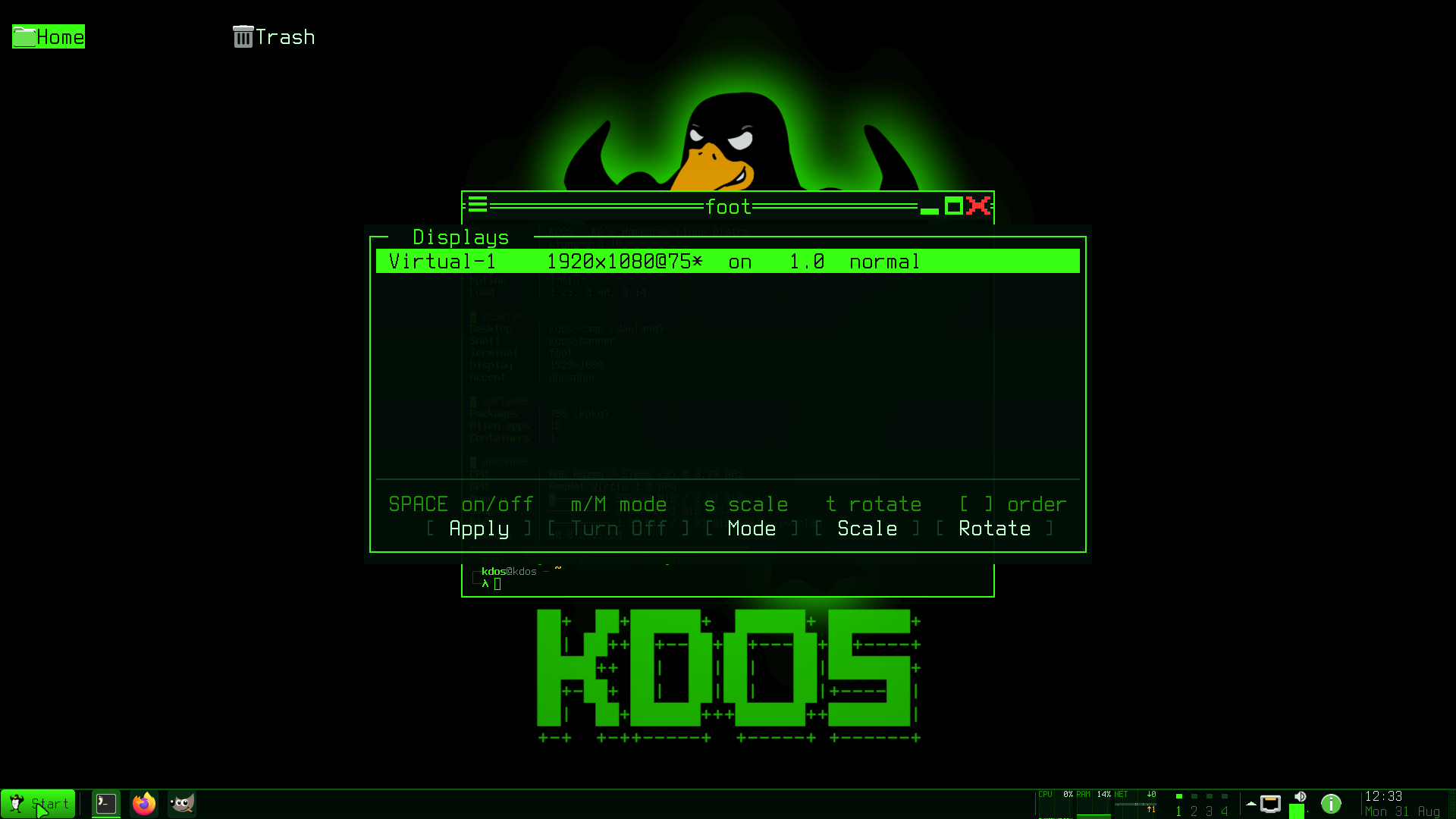
Super+P, or the display key on a laptop, opens kdos-display: your screens, their modes, their
scale and which are switched on.
Nothing is applied until you press Enter. Every key before that edits a plan:
| Key | Does |
|---|---|
↑, ↓ |
Select a screen |
m |
Choose from the modes the selected monitor reports |
Space |
Switch the selected screen on or off |
s |
Cycle the scale: 1, 1.5, 2 |
t |
Cycle the rotation, through the four rotations and their mirrored forms |
[, ] |
Move the selected screen left or right in the order |
Enter |
Apply the plan |
Esc |
Leave without applying |
A mode the monitor cannot actually show may still be accepted and leave you with a screen you cannot
read, so Enter starts a fifteen-second countdown. Press K to keep the result, which saves it to
~/.config/kdos/displays.conf. Press R, or let the countdown run out, and the arrangement from
before Enter is put back. kdos-display --apply re-applies the saved file without opening a
window; the session runs it at startup and whenever a screen is plugged in.
Screens are placed edge to edge from the left, in list order. Stacking screens vertically, overlapping them or leaving a gap between them is not supported.
Each screen gets its own panel and its own desktop icons, and each panel lists the windows on its own screen. The workspaces are shared: every screen shows the same workspace, and the pager on each panel counts windows on every screen. Notifications are not per-screen, so a toast appears wherever the compositor places it.
Removable media and devices
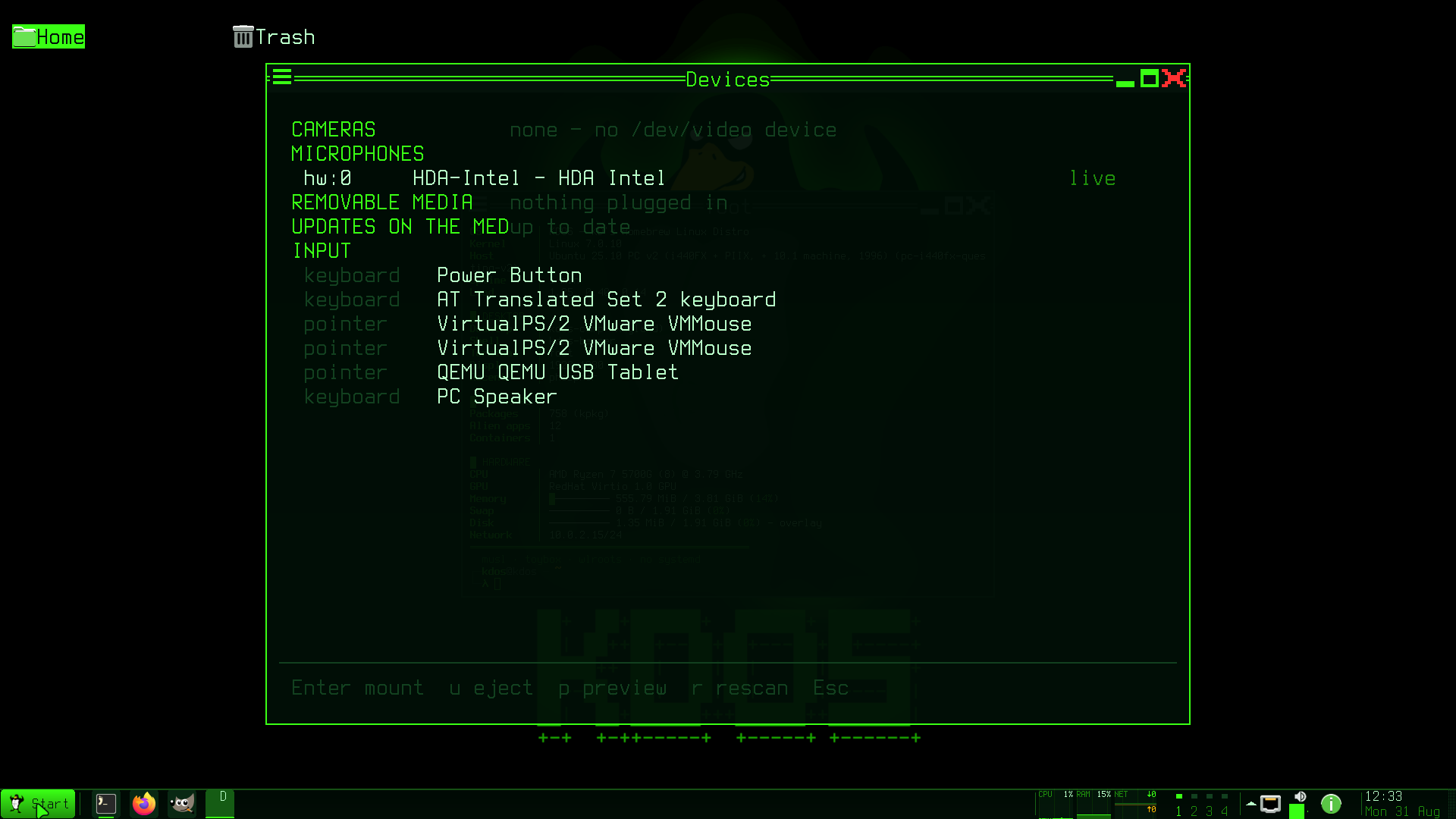
Super+F6 opens kdos-devices: USB sticks and other removable disks, cameras and microphones. You
pick a disk from the list, and a root service, kdos-mountd, mounts it. The service chooses the
device, the mount point and the options itself; the list offers row numbers, never paths, so no
request can name a system directory.
Removable disks are always mounted nosuid,nodev, and noexec by default. The mount point is
/media/<user>/<label>, or the device name when the filesystem has no label; it is created readable
only by you and removed on unmount, and characters other than letters, digits, ., _ and - are
removed from the label. /etc/kdos/mountd.conf does not exist by default. Create it with the line
exec = yes to allow programs on removable disks to run, with format = yes to allow the disks
tool, kdos-disks (the system.disks route), to format one, and with write = yes to allow it to
write a disk image, such as an installer, over a whole stick. Write image asks for the image
(type its path, or drop the file on the window) and then for the disk’s name, sdb for a row on
sdb1, because the whole disk is replaced. The bar shows the write and then the read-back that
checks it; the window can be closed while it runs.
The service offers only a disk that is removable or attached over USB, and never:
- an internal disk,
- a filesystem this kernel cannot mount,
- anything already mounted,
- anything listed in
/etc/fstab, - the medium this system booted from.
See the daemons for the full rules.
Who is using the camera and microphone
While something is recording, the panel shows a lamp naming the application, by its own name rather
than pipewire. There are three lamps: the microphone, the camera and the screen. The screen has its
own lamp because somebody watching your screen is a different event from somebody watching your
face. Click the microphone lamp, or press the mic-mute key, to mute or unmute the microphone.
The microphone lamp lights only while a recording stream is actually running, not merely open, so
it stays dark for an application that has a microphone open and idle. The camera lamp lights when
any process has a /dev/video* device open, because most applications use the camera directly
rather than through the portal, and also for a camera stream through PipeWire. The screen lamp
lights for a screen-capture stream, such as a portal screen share or Alt+Print.
The tooltip names the box the application is in, which tells you which Firefox it is when you have more than one.
When the desktop misbehaves
Stutter. A stutter chip appears when the compositor has dropped at least three frames in the
last ten seconds. By default it sits behind the overflow chevron. Click it to see which frames were
late, by how much, whether the compositor itself was slow, and what was busy at the time. The chip
disappears when the desktop stops dropping frames. kdos stutter gives the same report at a prompt.
Something is using too much. The meters strip is the quickest way in: left click opens btop,
middle click the stutter report, right click each application’s share of energy use.
Ctrl+Shift+Escape and Super+Ctrl+T open kdos-res, which can
name a boxed application rather than only its processes.
A fullscreen application has frozen and covers the screen. Press Super+F2 for the Team
Monitor. Select the window; Enter asks it to close normally, so an editor can still ask about
unsaved work, and k sends the process behind it SIGTERM.
The panel has gone. Super+Shift+Space brings back a panel you hid. If it is still missing,
check panel in comp.conf.
The mouse does nothing in windows. Your rc.xml has probably lost its <default /> line; see
Changing the bindings.
See also
- kdos-shell: every surface on this page, in detail
- kdos-comp: frames, the phosphor pass, and the configuration keys
- The window model: where a window goes, snapping and workspaces
- Applications: the native applications, and installing and launching boxed software
- Theming: accents, the shader, the wallpaper and fonts
- Accessibility: the magnifier and what does not exist
- Configuration: every key on this page, with defaults
- The design language: why it looks like this
- How KDOS differs: how this desktop compares with the ones other distributions ship
Part II — Using KDOS, chapter 7. Previous: 6. Installation · Contents · Next: 8. Applications